1. Export an EDL marker file from Live Timecode Notes app
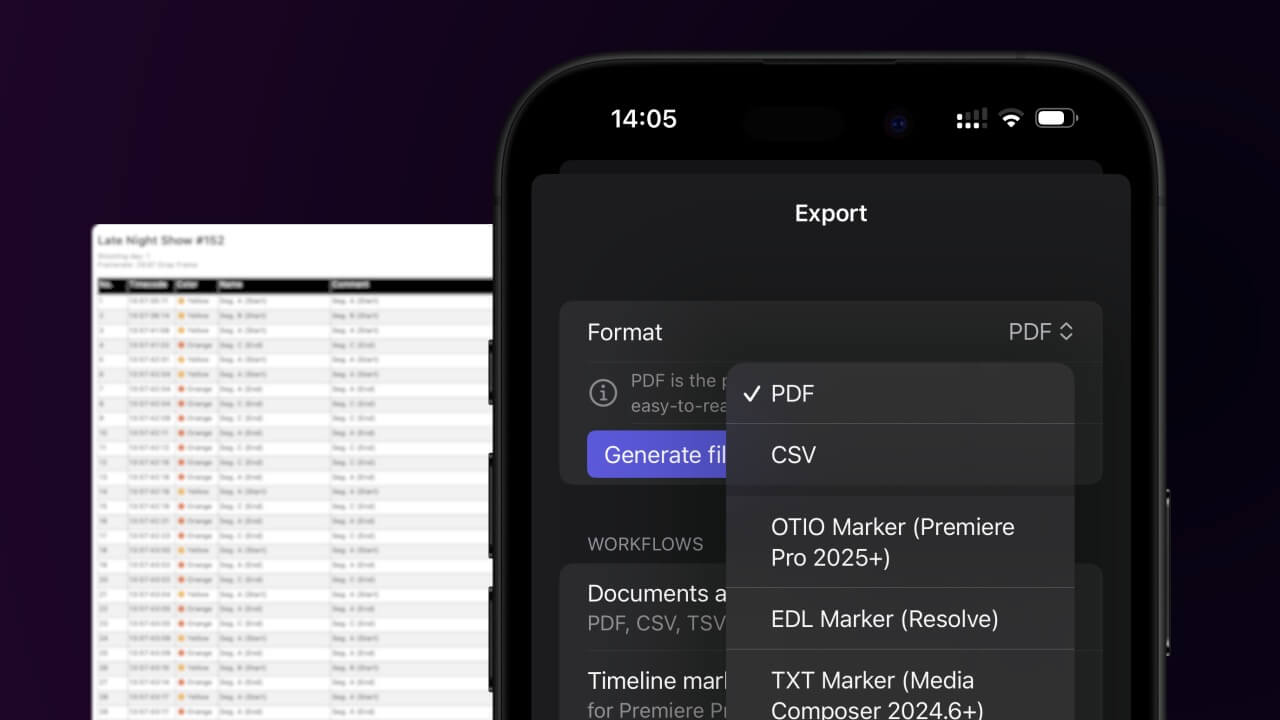
Open the project in the app, then select "Export Notes" from the top menu. Select "EDL Marker (Resolve)" and activate "Sort by Timecode". Generate and save the marker file.
2. Import the EDL marker file in DaVinci Resolve
- Create the new sequence or open the sequence in your project.
- Right-click the Sequence in your Media tab. It will open the popup menu.
- Navigate to: "Timelines > Import > Timeline Markers from EDL".
- Select the EDL marker file for Resolve and the markers will load.
If you don't see any markers, make sure they are in the correct timecode range and try zooming out of your timeline. If you cannot find the Timeline Markers, make sure you have selected a sequence in your Media tab. Resolve might not support special characters in marker names and comments.
🚀 Έτοιμο
Αυτά για την ώρα! Αν βρήκατε χρήσιμο αυτόν τον οδηγό, μοιραστείτε τον για να μας υποστηρίξετε. Αν έχετε προτάσεις για το πώς θα μπορούσαμε να βελτιώσουμε τη ροή εργασίας, ενημερώστε μας!